
Multiple helpdesks
A PC has one helpdesk of its own, and that helpdesk decides who else may help. This is how an MSP or other IT helpdesk lets a software vendor help its customers, and what the vendor does on its side.
Many people get help from more than one place: an IT company or a relative for the PC itself, and a software vendor for the bookkeeping program on it. In HelpBuoy both run their own server. The PC has one helpdesk of its own, the one it is locked to, and that helpdesk decides which other helpdesks may help.
The MSP and the software vendor
The most common pair is a managed service provider (MSP), the IT company that looks after a customer’s PCs, and a software vendor that supports one program on those PCs.
| MSP | Software vendor | |
|---|---|---|
| Looks after | The whole PC | Its own program |
| In HelpBuoy | The PC’s own helpdesk | Another helpdesk |
| The PC | Is locked to it and always starts there | Visits when the person picks it |
| Who may help | Decides it, for all its PCs at once | Has no say in it |
The MSP holds the gate. A vendor can’t reach a locked PC on its own: it asks the MSP to add its server, once. After that every PC of that MSP can pick the vendor, and the MSP can take it off the list again at any time.
The vendor is a guest, but it does its own work. It runs its own server, adds each PC it helps itself, and usually groups them in a customer. A vendor with customers at many MSPs asks each of those MSPs to add it.
Neither works through the other. The MSP doesn’t see the vendor’s sessions and the vendor doesn’t see the MSP’s other PCs or customers. The person at the PC stays in charge with both: they pick the vendor and they press Allow for every session.
The same goes for any other pair, such as a relative who looks after the PC and a helpdesk that helps with one program.
In the rest of this page the PC’s own helpdesk, the MSP, is Example Inc and the other one, the vendor, is Vendor Inc.
How it fits together
- The PC is locked to Example Inc. It always starts there, and Example Inc is who the person calls first.
- Example Inc keeps one list of other servers its PCs may use. Vendor Inc is on it.
- The person picks Vendor Inc from a list when they need them, and goes back to Example Inc with one click. Nobody types an address.
- A PC is on one server at a time. While it is with Vendor Inc, Example Inc sees it as offline, and the other way around.
- On each server the usual rules hold: the techies of that server can only help a PC that was added there, and the person presses Allow for every session.
Nothing connects the two servers to each other. Example Inc can’t see what Vendor Inc does and Vendor Inc can’t see Example Inc’s other PCs. The PC is simply known on both.
If you are the PC’s own helpdesk
You decide who else may help, for all your PCs at once.
- Ask the other helpdesk for the address of their HelpBuoy server.
- In your desk app, open the Server tab. Under Other servers, fill in a name, such as “Vendor Inc”, and the address, and press Add server.
- Your desk app looks up the key that server shows at that moment. From then on your PCs only accept that server with that key. The list shows its fingerprint. If you want to be sure it is really them, compare it with the server fingerprint on their own Server tab, for example on the phone.
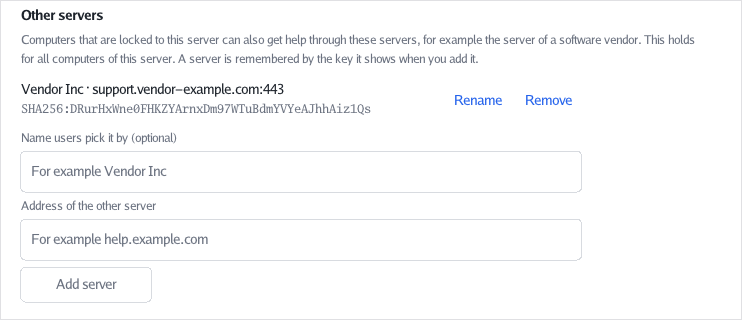
The name is yours to choose. It is what the people you help see on the button, so use the name they know the other helpdesk by. Rename changes it later; with an empty name people see the address.
On an always-on server you can do the same from the command line, with helpbuoy-server other.
Remove takes a server off the list for all your PCs. A PC that is with you learns it right away. A PC that is with the other helpdesk at that moment learns it when it comes back to you, at the latest the next time HelpBuoy starts.
When someone asks for a server you didn’t add
A person can also type an address themselves, under “Not listed?”. Their PC then doesn’t connect there. It stays with you and the request shows on their row in your Computers list, with the address and fingerprint of that server and Allow for all computers and Refuse.
Be careful with these: this is the road a scam caller has to take. Only allow a server when you know who runs it, and compare the fingerprint with them first. Allow for all computers puts it on the list for every PC you help, not only this one. A server allowed this way has no name yet and shows as its address; give it one with Rename under Other servers.
If you are the other helpdesk
You run a normal HelpBuoy server; there is nothing special to set up. What changes is how a locked PC reaches you.
- Give the PC’s own helpdesk the address of your server and ask them to add it. If they want to compare fingerprints, yours is on your Server tab.
- Ask the person to press Other helpdesk… and pick you.
- The first time, your server doesn’t know their PC yet, so it shows their key with a Copy key button, just as when you add someone you help. They send it to you and you add the PC in your desk app. If you help many companies, put the PC in a customer.
- From then on they pick you, you press Connect, and they press Allow.
A few things work differently than with your own PCs:
- Their PC is not locked to you, and it doesn’t ask to be. It stays locked to its own helpdesk.
- It is only online with you while they picked you. When HelpBuoy starts, it starts with their own helpdesk.
- You can’t allow further servers for that PC. Your own Other servers list only counts for PCs that are locked to you.
- If your server ever gets a new key, every helpdesk that added you has to add your address again. Until then their PCs refuse your server. Tell them before you change it.
A PC that is not locked reaches you the plain way: the person types your address and gets the usual first warning.
What the person sees
On a locked PC the waiting screen has Other helpdesk… where it otherwise has Disconnect. That opens a list with a button for every helpdesk their own helpdesk allowed. With the other helpdesk, the same button reads Back to Example Inc.
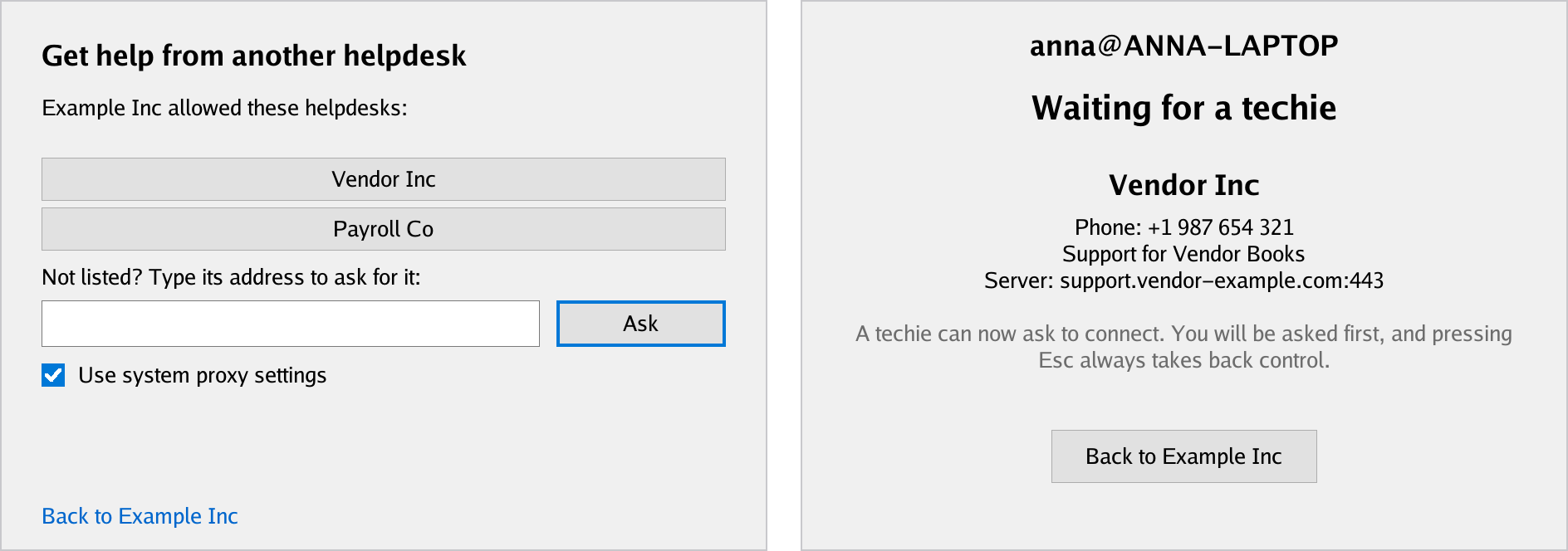
The waiting screen always shows who they are waiting for, with the company name and phone number of that helpdesk, so they know who to call.
Good to know
- The lock is the person’s choice. HelpBuoy asks them once the PC is added, and it can only be undone on the PC itself, by removing HelpBuoy’s files there. No server can lift it, also not yours.
- A PC that isn’t locked doesn’t need any of this. It can type any address. The list of other servers only matters for locked PCs.
- No address typing means less to fall for. A caller who reads out an address can’t get a locked PC to connect: the request lands with the PC’s own helpdesk first.
More about what this protects against is on the security page.