
Add someone you help
The one-time setup on their PC: install, type your address, send you their key.
You do this once per PC. It takes a few minutes, and it’s easiest on the phone.
On their PC
- They download HelpBuoy. On Windows they run the installer, which installs for their user only and never asks for an administrator password. On Linux they unpack the archive and start
helpbuoy; there is nothing to install. HelpBuoy for Linux needs an X11 session: on a Wayland desktop it says so and explains how to log in with X11 instead. - HelpBuoy asks for the server address. They type the address you set up, for example
helpme.example.com. - HelpBuoy shows the server’s fingerprint and their key, a long line starting with
ssh-ed25519, with a big Copy key button. - They copy the key and send it to you in a chat: WhatsApp, Signal, email, whatever you normally use.
The key isn’t secret, so it’s fine to send it in a chat. What matters is that you know the message really comes from them.
In your desk app
- On the Computers tab, press Add computer.
- Paste the message. It’s fine if it has a greeting in front or got broken over several lines by the chat app; HelpBuoy finds the key in it.
- HelpBuoy shows the name (like
anna@ANNA-LAPTOP) and the fingerprint in large letters. You can change the name to something friendlier, like “Anna’s laptop”. - If in doubt, compare on the phone: read out the first few characters of the key fingerprint and the server fingerprint, and ask them to compare with their screen.
- Press Register.
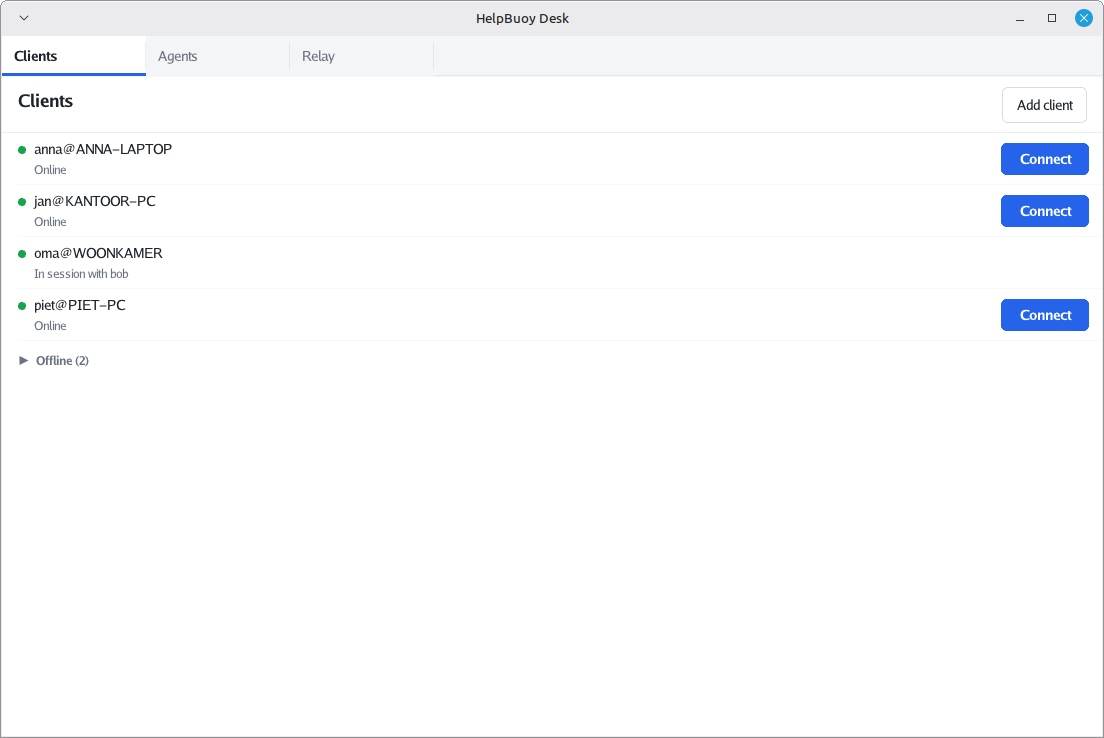
Their HelpBuoy switches to its waiting screen by itself and remembers the address. From now on, whenever they open HelpBuoy, their PC shows up as online in your list.
Next: help them.